Small Office
How to Run a Small Office Network Without an IT Person
Published November 16, 2026 • 7 min read
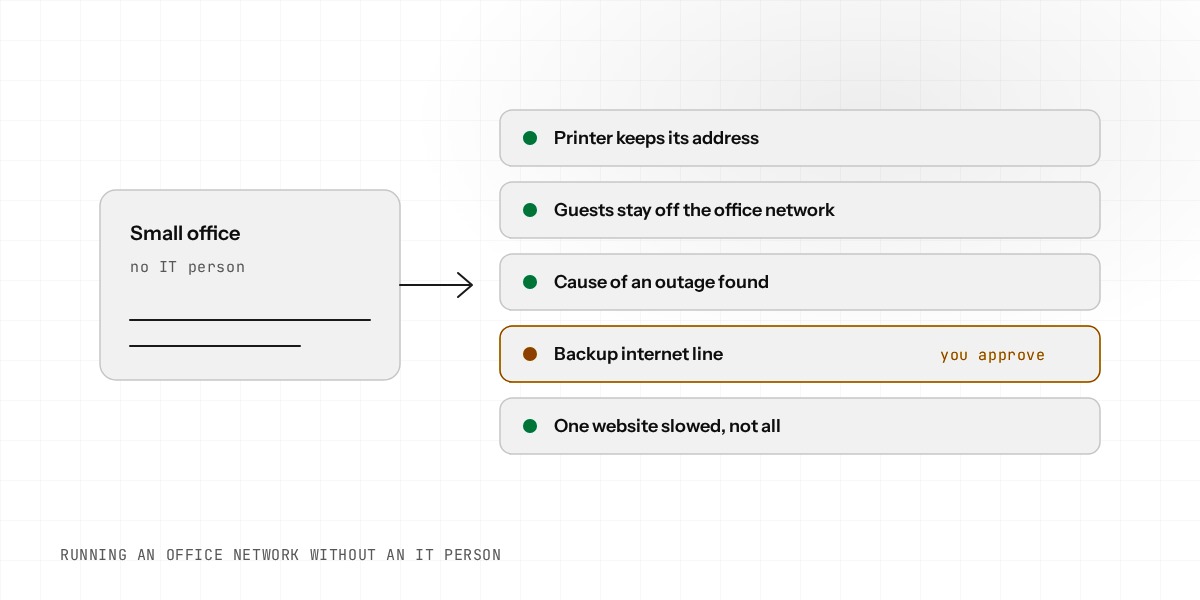
Most small offices have a network and no network person. Someone sets up the router once, writes the password on a sticky note, and then nobody touches it until something breaks.
This guide covers the jobs that come up in a small office, how to handle each one, and where an AI network administrator can take the work off you.
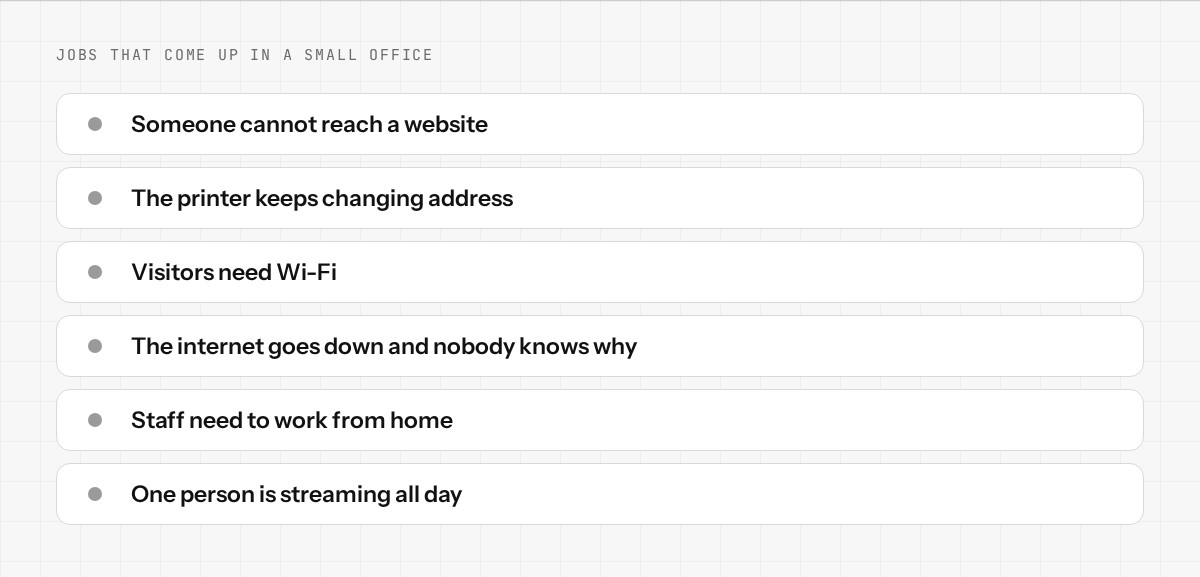
The jobs that come up
- •Someone cannot reach a website. Usually a block that was added for a good reason and nobody remembers.
- •The printer keeps changing address. It needs a fixed address, called a DHCP reservation.
- •Visitors need Wi-Fi. They should reach the internet and nothing else in the office.
- •The internet goes down. And nobody knows whether it is the provider or the office.
- •Staff need to work from home. That needs a VPN.
- •Someone is streaming all day. The slow connection is a complaint every week.
1. Reserve an address for the printer
A printer that keeps changing address breaks every computer that was set up to use it. Give it a fixed address and a name like printer. With Enwigate AI you say "give the printer a fixed address", it picks the device from your network, shows you the address it will use and applies the change. This is a low-risk change, so it applies straight away and you can undo it.
2. Keep visitors off the office network
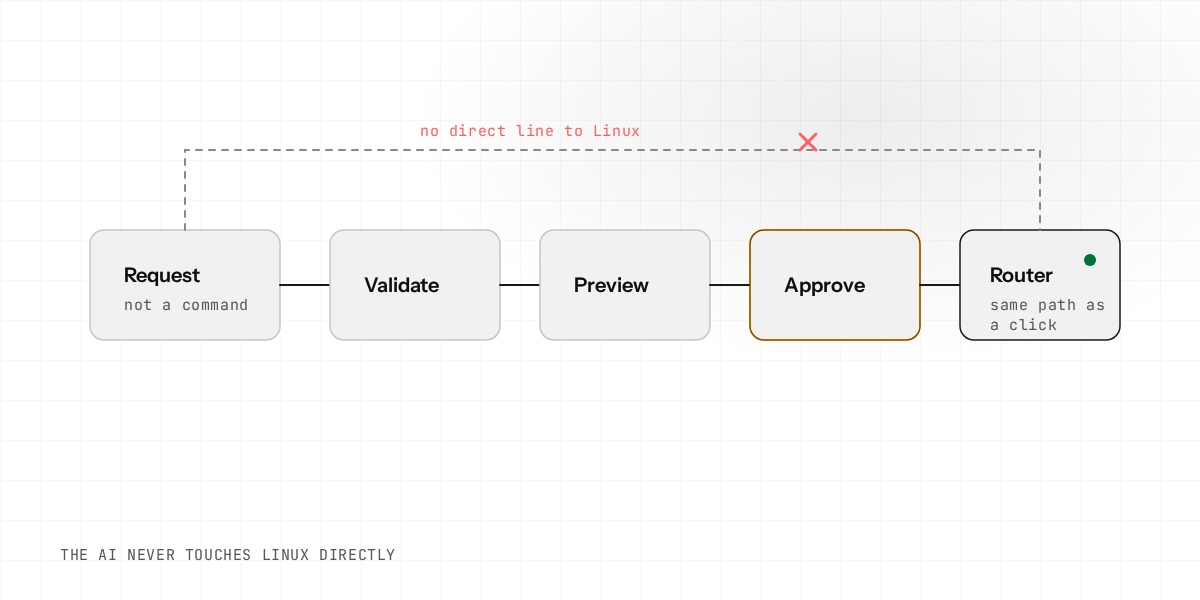
Guest Wi-Fi should reach the internet and nothing else. Setting this up by hand means creating a separate network and a firewall rule between the two. You can ask the AI to propose it in one sentence. Because it changes your networks and firewall, the plan waits for your approval, and you see it before anything is applied.
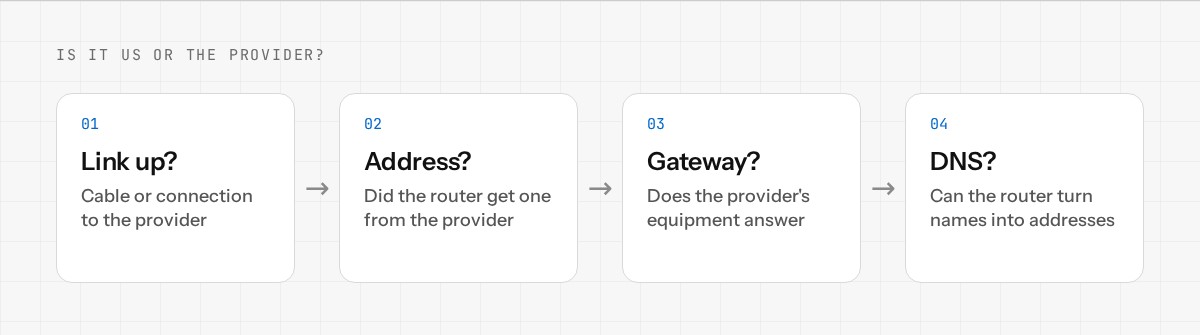
3. Know why the internet is down
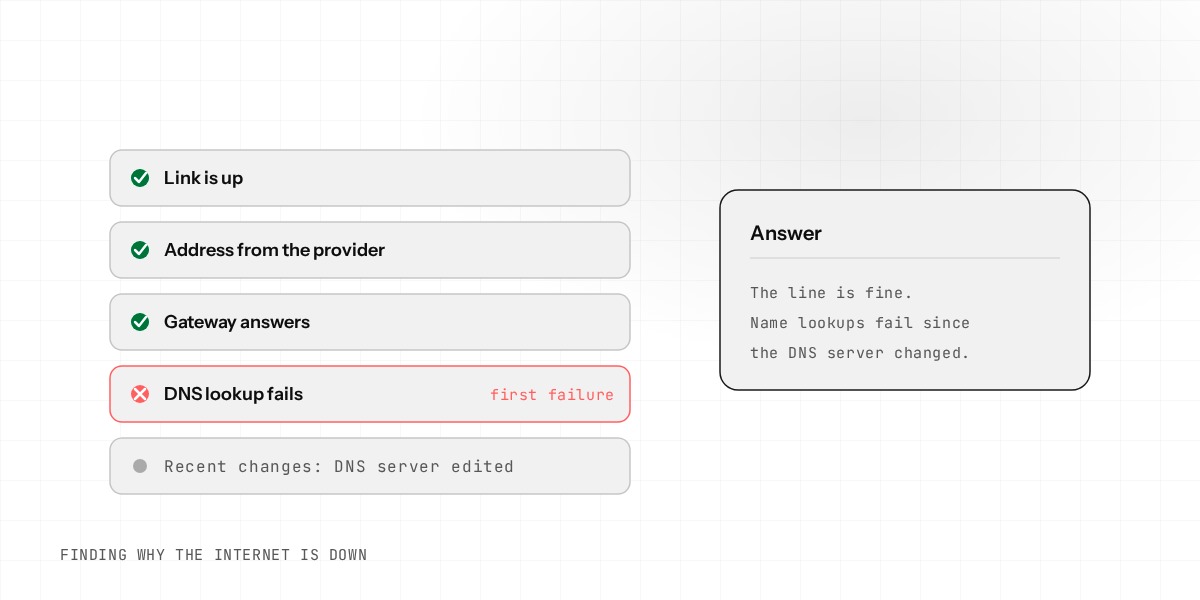
When the internet stops, the first question is whether the problem is the provider or the office. The router can answer that. It can check whether the connection is up, whether the provider's gateway answers, and whether DNS lookups work. An AI network administrator runs those checks for you and tells you the first thing that fails. Read more in how an AI finds the cause when the internet is down.
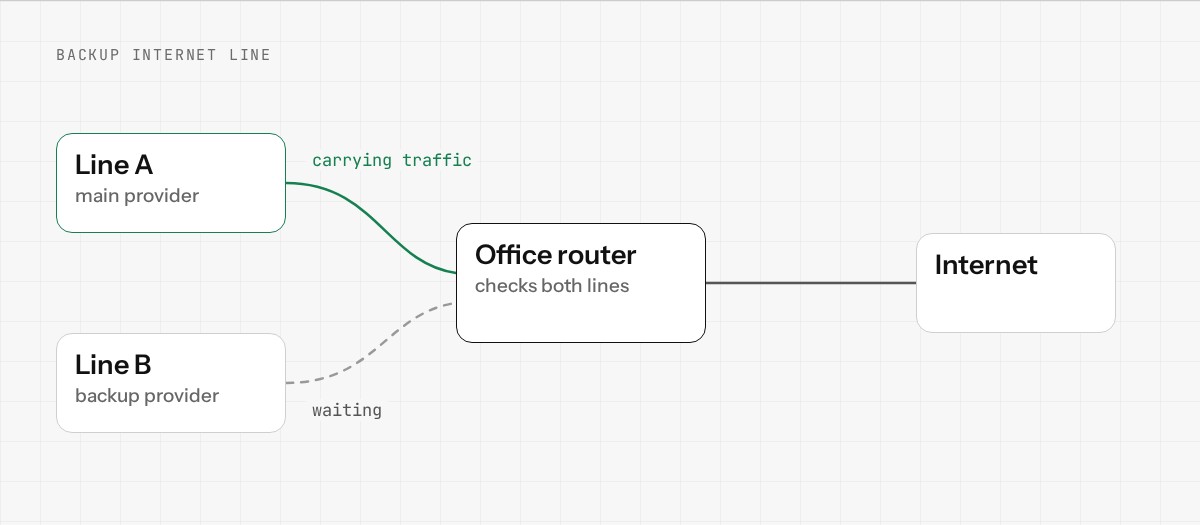
4. Add a backup internet line
A second connection, from another provider or a mobile router, keeps the office working when the first one fails. Enwigate OS supports up to two internet lines, either as primary and backup or shared. A change to your internet connection could cut you off, so it always waits for your approval, and the router saves a backup of its settings first.
5. Let staff connect from home
Enwigate OS includes WireGuard and OpenVPN remote access. Creating the keys for a new person is a step the AI will not do. You do it with a click on the dashboard, because those keys are a secret. The AI can still help with the rest, such as which networks people can reach.
6. Slow down one website, not everyone
If one website is eating the connection, you can limit that website for everyone, or for one device, and leave the rest fast. You ask for it by name, for example a video site, and the AI shows the limit before applying it.
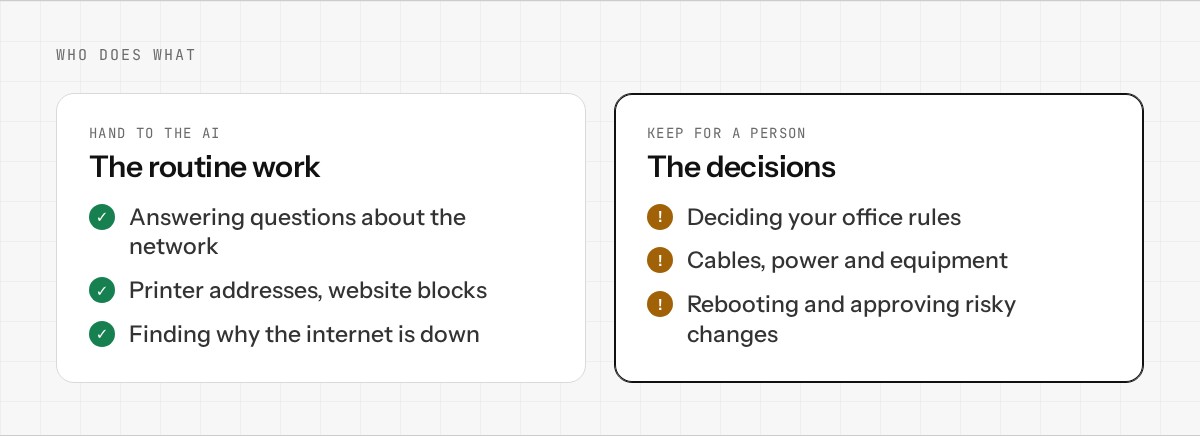
What still needs a person
- •Deciding what your office rules should be. The AI can apply a rule, but it should not invent your policy.
- •Anything about the physical equipment, such as cables and power.
- •Rebooting the router, which needs a real click.
- •Approving changes that could affect your connection. This is on purpose.
Start small
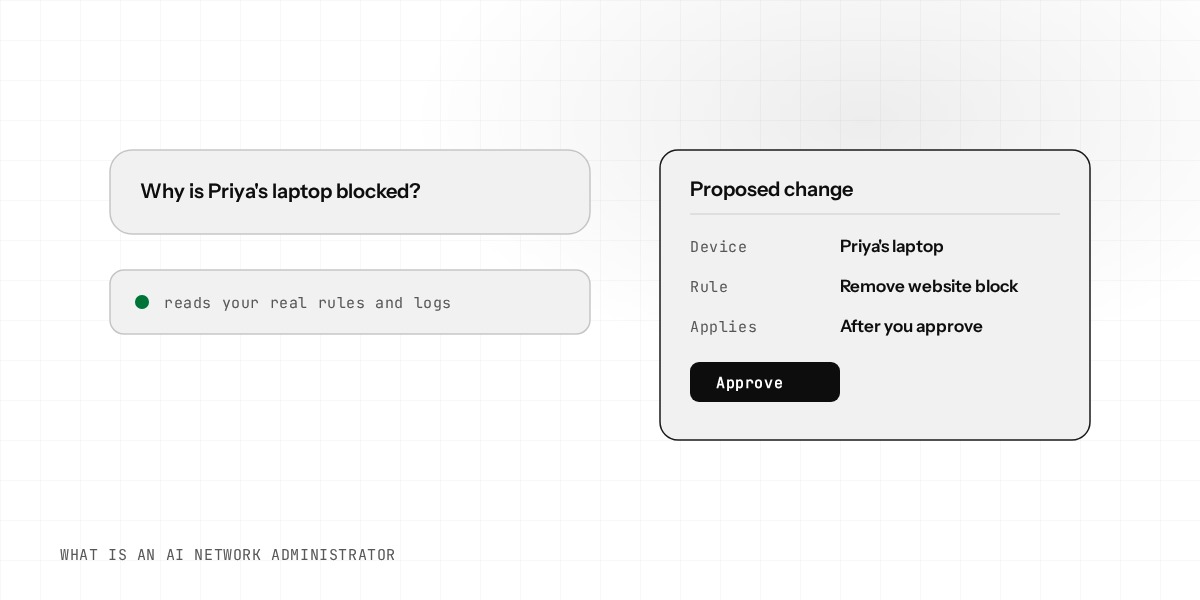
You do not have to hand over everything on day one. Start by asking questions. Ask which devices use the most data, or why a website is blocked. When you trust the answers, start asking for small changes. The preview and the log let you check the work every time.
Want an AI network administrator for your office? Join the Enwigate early access or see how it works.